
Crimson Moon Mods: Nexus, UE4SS & FOV Controls
Crimson Moon has a Nexus Mods category with community PC projects, including a UE4SS loader and a post-processing/FOV tweak. Their existence is verified; compatibility with every game patch, store and co-op pairing is not.
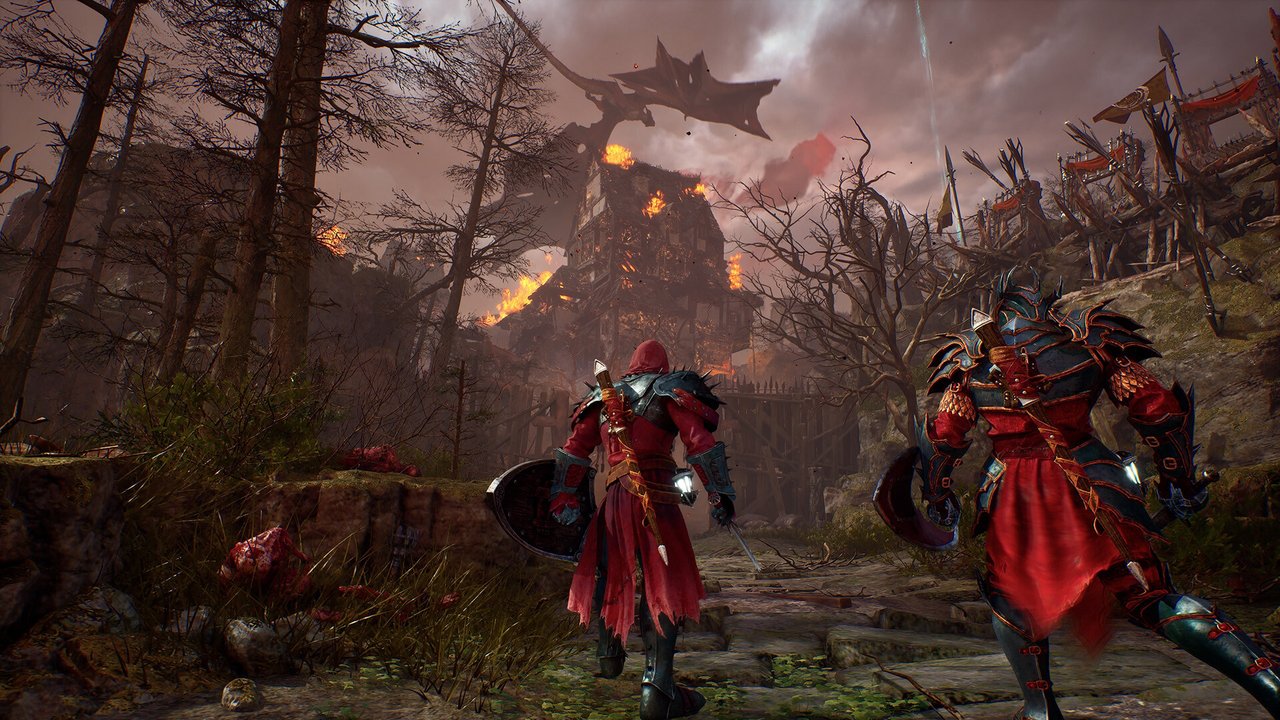
Choose the project for the task
| Task | Author’s project | What is established |
|---|---|---|
| Load Lua / Blueprint mods | UE4SS for Crimson Moon | Biozilla’s game-specific loader listing. A dependency, not a graphics preset. |
| Adjust field of view or post-processing | Post Processing Removal and FOV Tweaker | Biozilla lists FOV controls and toggles for chromatic aberration, grain and motion blur; requires the loader. |
| Browse other projects | Crimson Moon Nexus category | Includes startup and cheat-menu projects. Listing order or endorsements do not establish compatibility. |
These are author-published projects, not official game updates. “Nexus Mods” is the website; the in-game Nexus Gates described in the Boons guide are unrelated. Console installation is not established by these PC listings.
FOV tweak: controls and installation location
The FOV author’s instructions list F5 to widen the view in five-degree steps, F6 to narrow it, F7 to restore the default and F8 to toggle post-processing. The author notes that FOV changes also affect the main menu and that not every location was tested.
The documented Steam installation targets CrimsonMoonNG/Binaries/Win64 inside the game folder, with ue4ss and dwmapi.dll beside CrimsonMoonNGSteam-Win64-Shipping.exe. A custom Steam library changes the drive and library prefix; do not paste a default C: path without locating your installation.
Read the linked author instructions for the required loader first, then the dependent tweak. The checked FOV listing shows mod version 1.1, updated September 2; that is a mod version, not game Patch 1.1.
Before and after a game update
- Read the author’s current files, requirements and posts for the exact game build and store you use. If compatibility is unstated, treat it as unknown.
- Close the game and make a separate save backup. Record the mod files you add so you can identify your own changes later.
- Follow one author’s installation instructions at a time. Keep the game version and mod version separate in your notes.
- If a problem begins after installing or updating a mod, return to an unmodified configuration using its removal instructions before comparing the same symptom. Do not delete unrelated game or save files.
We have read these pages but have not downloaded, executed or tested the mods. No FPS gain, current 1.0.1 compatibility, save safety, achievement behavior or multiplayer support is promised. For built-in controls and official fixes, use PC help and the patch timeline.